Pelican Theming and Pages VS Content
While I was working on my site, I ran into a couple of issues that broke my flow for quite a while. One was working with custom themes and the other was using pages or content. So I am going to cover these issues and how I got around it.
Theming
Pelican make it fairly easy to use custom theme templates. The official themes can be found and tested from this link and they can be downloaded from their Github. I git cloned the entire repo so that I could test out all of the themes on my local computer instead of just testing through the first website. If you are following along from previous post, then we will navigate to our first-site folder in terminal and run the following command:
git clone https://github.com/getpelican/pelican-themes.git
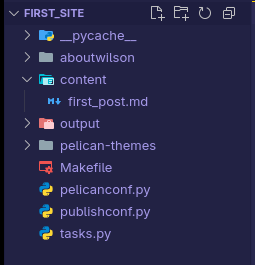
This will give you a folder called “pelican-themes” which contains all the official Pelican themes. To test out one of the themes, copy the folder of the desired theme to the root directory. I am going to copy pelican-themes/aboutwilson to /aboutwilson. Should look something like this if using Vscode:
Now in the terminal we can run pelican -t aboutwilson . This sets the theme to the specified folder of aboutwilson. Then run ‘pelican -l’ and the changes should take effect next time you load the website.
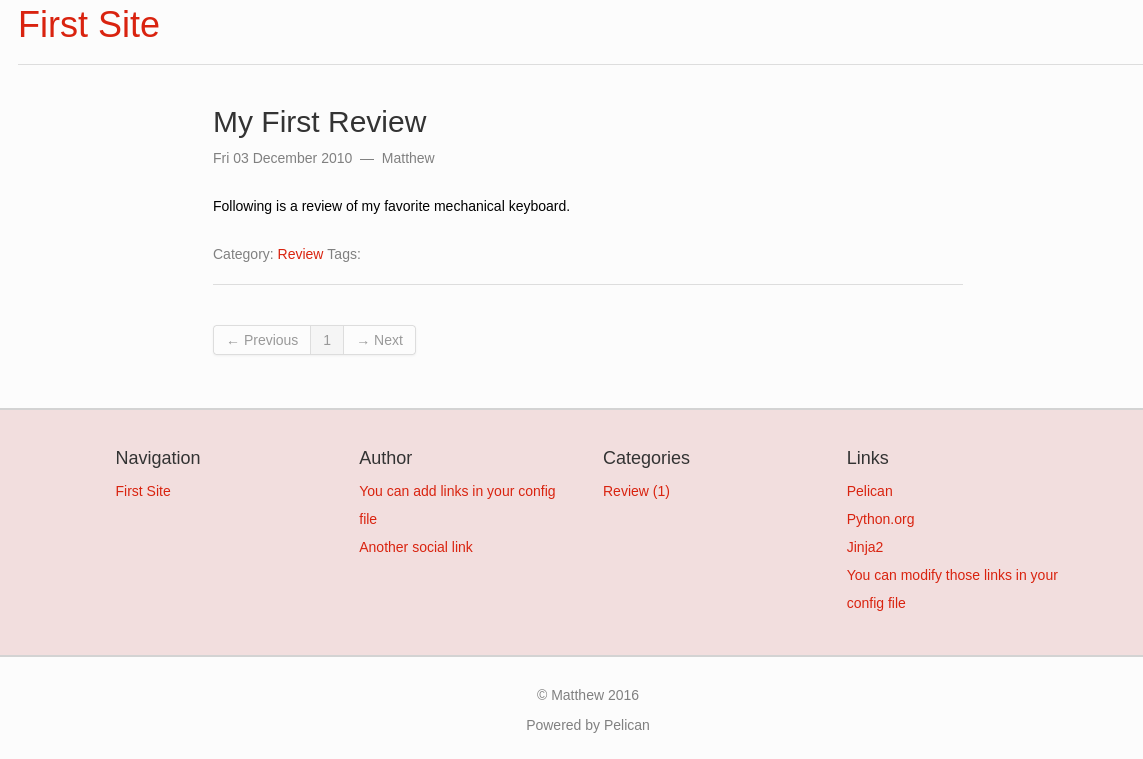
That was easy, wasn’t it? Yes. The problem I was having is that after setting the theme, I would add more content and then run pelican content to update the content of the website, and then I would lose the theme. On testing, it seems that pelican -t also updates content so I just use that now and don’t run pelican content anymore.
Pages VS Content
In Pelican, you can make pages OR content. I didn’t know this at first, so I thought everything was content and everything was showing up like a blog and I didn’t want that. I nearly scrapped working on this site because of it. But if you read the docs it tells you the difference right away. (I need to spend more time reading docs).
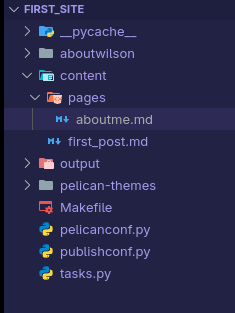
In your content folder, create a new folder called pages. That’s it. Any md that is in the pages folder will be treated as a static page. We could go ahead and create an “aboutme.md” in that folder. And then we can fill in some of the tag information:
Title: About Me
Date: 2025-12-02
Author: Matthew Heltman
Category: AboutMe
Slug: about-matthew-heltman
Summary: A page all about me

Hello I am Matthew Heltman and I am writing a blog on a pelican site
So now your folder structure should be something similar to this:
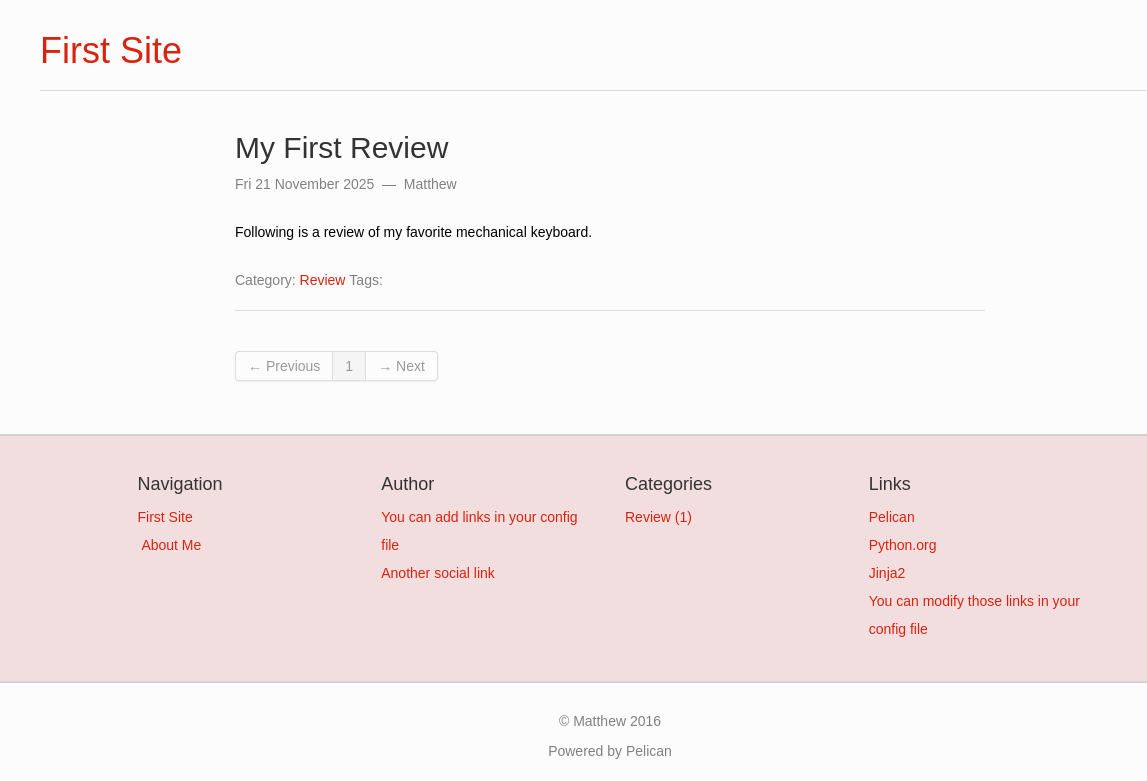
And now run pelican -t aboutwilson and pelican -l. Now when you navigate to your localhost:8000 you should have an about me page under the Navigation header everything should have the aboutwilson theme applied to it.
Congrats!
You are now theming and writing pages or blog posts!
Remember to read the docs for tonnes of useful information. They are really well put together.
If you have any issues, or if you have any suggestions or requests for upcoming content, feel free to email me or join my Discord.
Up next:
Adding:
RSS Feeds
Social Icons
Favicon